
The initial rush of using generative AI usually follows a predictable curve. First, there is the novelty phase—typing a bizarre sentence into a box and watching pixels rearrange themselves into something recognizable. Then comes the utility phase, where you try to make it do something actually useful for work or a project. Finally, there is the calibration phase: realizing that while the tools are powerful, they aren’t mind readers.
If you are currently exploring tools like Banana Pro AI, you are likely somewhere between that second and third phase. You aren’t looking for magic anymore; you are looking for a workflow that doesn’t cost a fortune or require a degree in computer science.
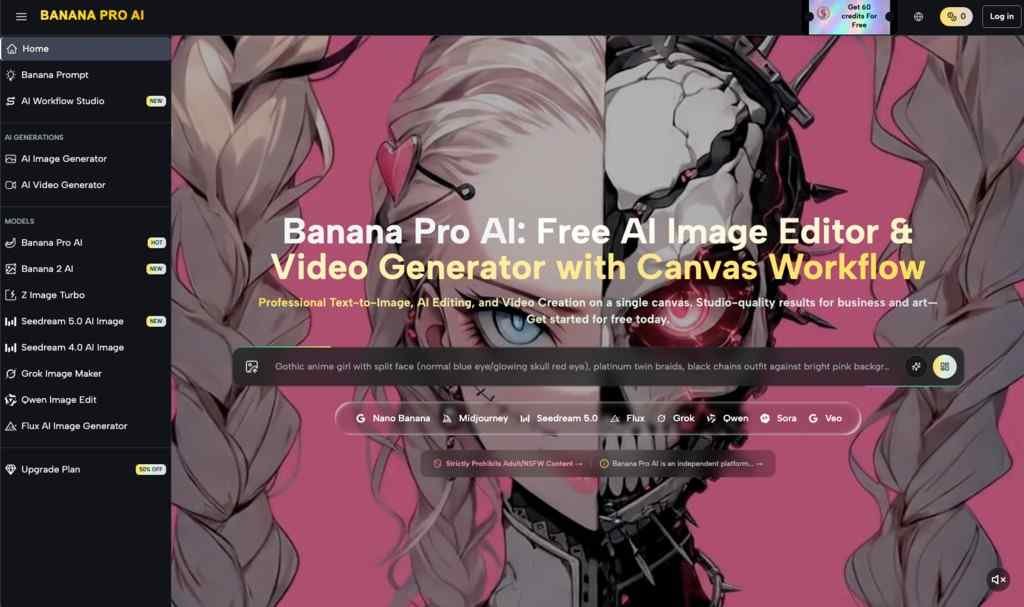
The landscape of creative tools has shifted. We used to rely exclusively on stock photography sites or manual design software. Now, the ability to generate visuals “instantly”—a core promise of Banana Pro AI—has changed how we prototype ideas. But for anyone trying to integrate an AI Image Editor into a daily routine, the question isn’t just “can it make an image?” It’s “can it make the right image without wasting my afternoon?”
Here is a realistic look at how these workflows function, where the friction points usually hide, and how to get value out of free-tier generators without getting stuck in the refinement loop.
The Reality of the “Free” Label in AI Workflows
One of the first hurdles in the AI space is the “credit anxiety” that comes with most platforms. You sign up, you get 10 credits, and you burn through them in three minutes trying to get the lighting right on a coffee cup.
This is where tools that position themselves as a “free AI image generator” tend to find their specific niche. The psychological difference between “I have 5 tries left” and “I can keep hitting generate” is massive.
When you are using a tool like Banana Pro AI, which emphasizes its free access, the workflow changes. You stop trying to craft the perfect prompt on the first try (which rarely works anyway) and start treating the generator more like a sketching partner. You can afford to be messy. You can afford to generate ten variations of a concept just to see what sticks.
However, experienced users know that “free” often comes with its own trade-offs. It might mean navigating a simpler interface with fewer granular controls, or it might mean the tool is optimized for speed rather than high-resolution print outputs. When evaluating a tool in this category, do not compare it to a $30/month enterprise suite. Instead, ask: Does this remove the barrier to starting?
If a tool allows you to iterate without watching a credit counter tick down to zero, it serves a specific role in the creative stack: the volume generator. It’s there to get the bad ideas out of your system quickly so you can find the good ones.
Text-to-Image vs. Image-to-Image: Where Control Actually Lives
Most beginners start with text-to-image. It is the most intuitive entry point: you type “futuristic city with neon lights,” and the AI delivers. But anyone who has tried to use AI for a specific project—say, a blog header or a social media mockup—knows that text prompts are notoriously slippery. You might get the neon lights, but the city looks like a cartoon. You fix the style, but now the lights are gone.
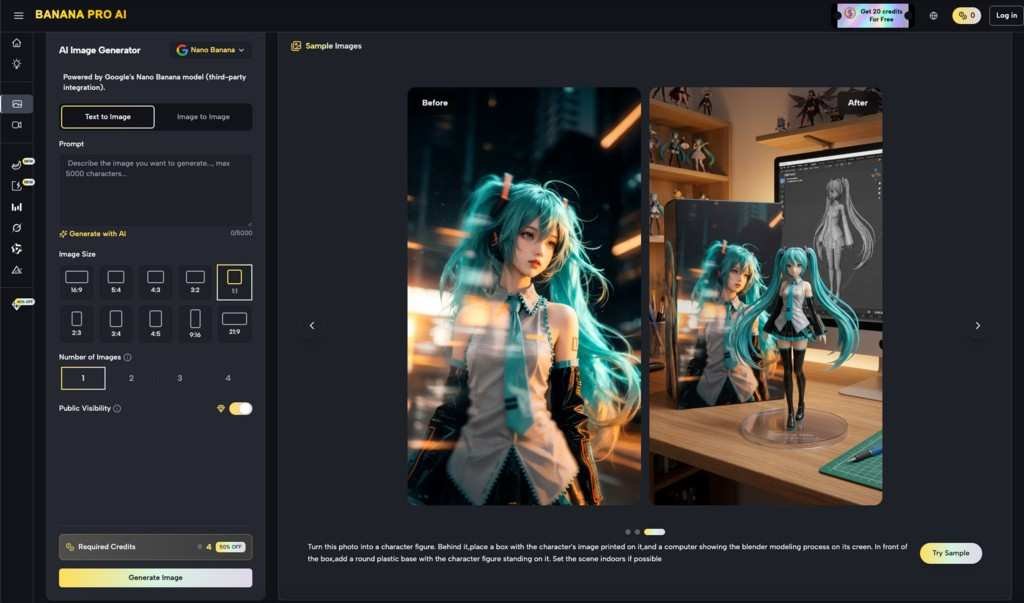
This is why the Image to Image conversion feature mentioned in Banana Pro AI’s scope is often more critical than the text box.
In a practical workflow, the “blank page” is the enemy. It is often far more effective to sketch a rough composition in a paint tool—stick figures and blobs of color are fine—and upload that as a reference. This anchors the AI. It tells the model, “Put the building here and the person here.”
If you are testing Banana Pro AI, try this shift in approach:
- Don’t write a 50-word paragraph describing a scene.
- Find a rough image that has the composition you want (or draw a terrible one yourself).
- Use the Image-to-Image feature to “skin” that composition with a new style.
This is where an AI Image Editor moves from a toy to a tool. It stops being a slot machine and starts being a renderer. The ability to guide the AI with visual input rather than just semantic input is usually the dividing line between frustration and success.
The “Stunning” Trap: Managing Visual Expectations
Every AI tool on the market promises “stunning images.” It is the industry standard adjective. But “stunning” is subjective, and in the context of AI, it often defaults to a specific aesthetic: high contrast, hyper-detailed, and slightly glossy.
For a fantasy concept or a mood board, this is great. For a brand that needs to look authentic, it can be a problem.
Let’s say you are mocking up a logo or a mascot for a hypothetical project—maybe a quirky, tech-forward fruit brand you’ve internally codenamed Nano Banana. You want something minimal, flat, and vector-like. If you just type “banana logo,” the AI might give you a 3D, cinematic, 8K render of a banana exploding in space. It looks “stunning,” but it is useless for your needs.
This is a common friction point. The model’s default setting is usually “impress the user,” while the user’s need is often “match my specific constraints.”
When using these tools, you have to learn to speak their language to dial down the “stunning.” You often need to use negative prompts (if supported) or specific style descriptors like “flat design,” “vector art,” “simple lines,” or “matte finish” to fight the AI’s tendency to over-render.
Don’t judge the tool by its default output. Judge it by how well it listens when you tell it to calm down.
Speed vs. Precision: The Trade-off
The promise of creating images “instantly” is appealing, especially for social media managers or content creators who needed a visual yesterday. Speed is a legitimate feature. If you are writing a blog post and just need a relevant header image to break up the text, a fast, free generator is often superior to spending an hour searching stock libraries.
However, speed usually comes at the cost of precision. In a typical workflow, you might spend 10 seconds generating an image and 20 minutes trying to fix a small detail, like a weirdly shaped hand or text that looks like alien hieroglyphics.
It is important to recognize where the AI’s job ends and yours begins. A tool like Banana Pro AI is likely best used as a starting point generator. It gets you 80% of the way there. It provides the lighting, the composition, and the texture.
The final 20%—adding readable text, color-correcting to match your brand, or cropping out a hallucinated third arm—is often faster to do in a traditional photo editor than to try and prompt the AI to fix it. Beginners often fall into the trap of regenerating an image 50 times hoping the AI will fix one small error. The pro move is to take the best version, export it, and fix the error yourself.
Why Human Judgment is the Final Filter
After spending a few weeks with any AI image tool, the magic fades, and a realization sets in: the AI has no taste. It doesn’t know that the color palette it chose clashes with your website, or that the composition is unbalanced. It just predicts pixels based on patterns.
Your role shifts from “creator” to “curator.” You are the art director. You might generate twenty images of that Nano Banana Pro concept, and nineteen of them will be unusable. One might be perfect. Your value isn’t in typing the prompt; it’s in recognizing that one usable image among the noise.
Tools like Banana Pro AI democratize the production of pixels, but they place a higher premium on the selection of them. The barrier to entry for creating an image has dropped to zero, which means the volume of mediocre images has skyrocketed.
To stand out, you need to apply strict quality control. Does the lighting make sense? Is the perspective consistent? Does it look like generic AI slop, or does it have a distinct style?
Summary: When to Use What
If you are looking to integrate a tool like Banana Pro AI into your workflow, here is a grounded way to categorize its utility:
- Use it for: Rapid ideation, mood boarding, breaking writer’s block, and creating assets for ephemeral content (like social stories or internal presentations) where speed matters more than pixel-perfect precision.
- Be careful with: Final assets requiring specific text, complex spatial relationships, or strict brand compliance.
The best workflow is usually a hybrid one. Use the AI to generate the raw material—the clay—and then use your own judgment and editing tools to sculpt it into something that feels human. The goal isn’t to let the AI do all the work; it’s to let the AI handle the heavy lifting so you can focus on the creative direction.