
Generating an architecture diagram is only half the challenge — the other half is making sure it communicates clearly to the audience that will read it. A detailed technical layout with labeled ports and service names is exactly right for an engineering design review, and exactly wrong for a C-suite stakeholder who needs a ten-second system overview. Architecture Diagram AI solves this with Multiple Visual Styles: six distinct rendering modes that transform the same system description into diagrams designed for completely different audiences and contexts, all from a single text prompt.
Whether you are documenting infrastructure for your engineering team, presenting a proposal to leadership, or publishing a technical blog post, Multiple Visual Styles ensures the diagram fits its reader. This article covers what each style is for, how it works alongside the rest of ArchDiagramAI’s features, and how to choose the right combination for your workflow.
What Are Multiple Visual Styles?
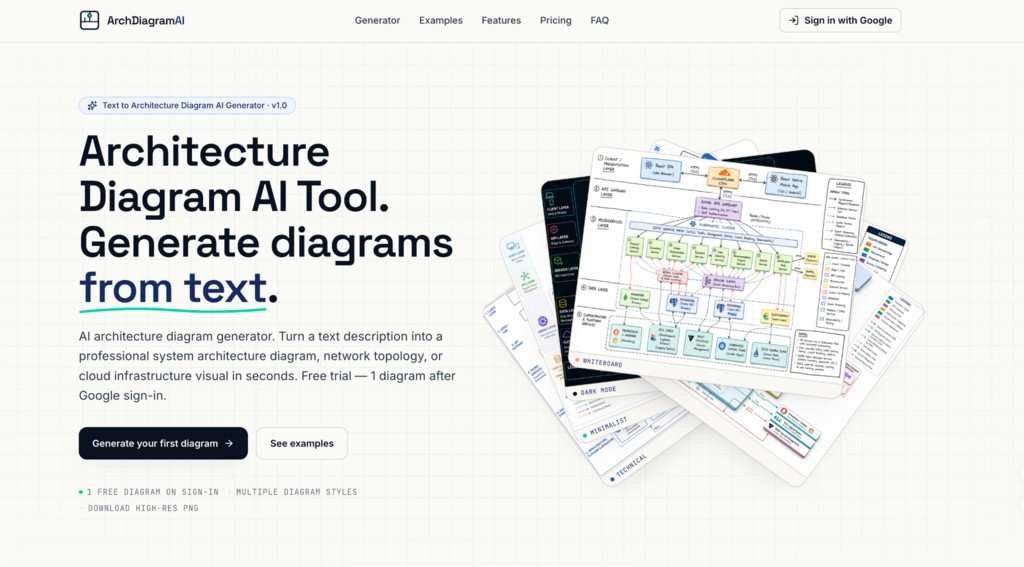
Multiple Visual Styles is ArchDiagramAI’s rendering system. After writing a plain-English description of your system, you choose one of six visual styles — or define a custom style in the prompt itself — and the AI generates the diagram in that visual language. Each style gives the same underlying architecture a unique visual character:
- Technical — Clean lines, clearly labeled components, and an engineering-focused layout. Connection directions are explicit and service names are prominent. Built for documentation, RFCs, architecture decision records, and internal engineering wikis.
- Minimalist — Simplified labels, reduced visual complexity, and a layout that emphasises system relationships over component specifics. A non-technical reader can understand the system shape at a glance. Built for executive summaries, stakeholder presentations, and cross-functional team meetings.
- Dark Mode — High-contrast diagram on a dark background, matching the visual language of a dark-mode code editor. Renders cleanly on dark-mode displays and communicates technical credibility to a developer audience. Built for README files, developer blogs, and dark-theme documentation sites.
- Whiteboard — A hand-drawn aesthetic that signals the design is approachable and still evolving. Built for team onboarding, early design sketches, and teaching materials.
- Colorful — Distinct colors assigned to different component categories, making the system structure immediately readable at a glance. Built for complex multi-service systems, public-facing documentation, and blog posts where visual differentiation aids comprehension.
- 3D Isometric — Layered depth and a three-dimensional perspective that creates significantly higher visual impact than a flat diagram. Built for conference presentations, marketing materials, and product launch announcements.
- Custom mode — Describe your preferred visual style directly in the text prompt. For example: “render this as a blueprint diagram with a navy background, white component boxes, and gold connector lines.”
The Other Features of ArchDiagramAI
Plain-English Prompts
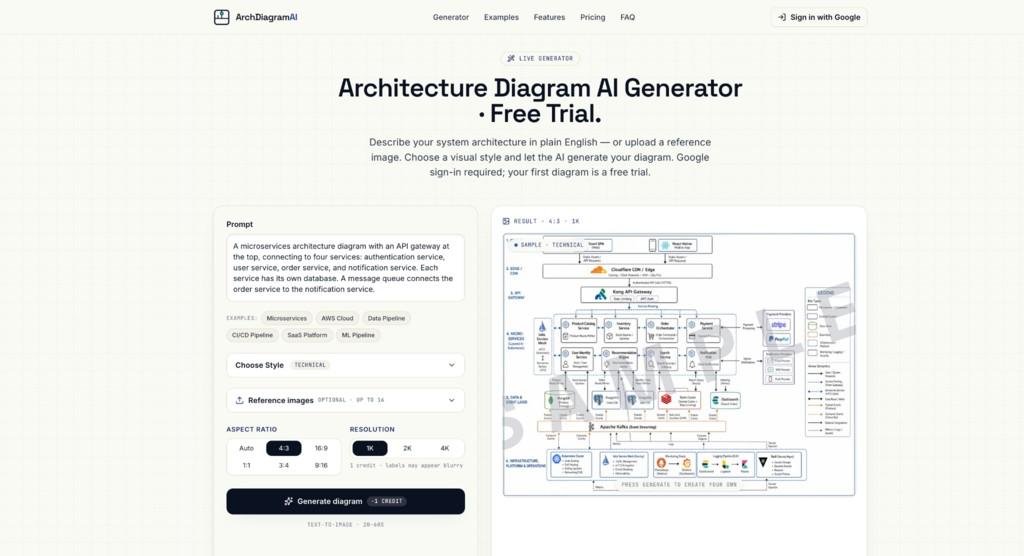
Every style begins with a plain-English system description. Type your architecture in natural language — naming services, databases, connections, and data flows — and the AI handles component placement, connection routing, and layout. No UML notation, no shape libraries, no drag-and-drop canvas required.
The quality of the style output depends directly on the quality of the input. A vague prompt produces a generic layout in any style. A precise prompt — naming every service, connection direction, and data flow — gives the AI enough structural detail to produce an accurate result across all six styles. ArchDiagramAI includes six built-in example prompts — Microservices, AWS Cloud, Data Pipeline, CI/CD Pipeline, SaaS Platform, and ML Pipeline — as starting points.
Image-to-Image References
Pair Multiple Visual Styles with Image-to-Image References to restyle existing diagrams without rebuilding them. Upload an existing architecture diagram — a Visio export, a draw.io screenshot, or a whiteboard photo — as a reference image (up to 16 images per generation). Describe any structural changes in the prompt, choose a new visual style, and generate.
This combination is the most efficient path for documentation refresh projects: upload the old diagram, apply a consistent modern style across the entire set. A library of 20 legacy diagrams can be modernised in a fraction of the time required to rebuild each one manually.
Up to 4K Resolution, No Watermark
All six styles are available at 1K, 2K, or 4K resolution as watermark-free PNG files. Aspect ratio options — Auto, 4:3, 16:9, 1:1, 3:4, 9:16 — let you match the generated image to the destination platform.
- Technical and Colorful — use 2K or 4K; these styles include many labeled components and connection annotations
- Minimalist and Whiteboard — 1K is often sufficient; fewer and larger labels reduce the resolution requirement
- 3D Isometric — use 4K for conference slides and marketing materials displayed at large sizes
- Dark Mode — use 2K or 4K for blog posts and README files where readers may zoom in to read service names
Private by Default
Every diagram generated in any style remains private. ArchDiagramAI does not train its AI models on your designs and does not share your inputs with third parties. This applies to the free trial and to every generation on a paid plan.
How to Use ArchDiagramAI Efficiently
The most productive approach with Multiple Visual Styles is to treat one precise prompt as the source for all your diagram deliverables:
- Write one complete system description — Name every component, connection, and data flow. Verify the description is accurate and complete before generating.
- Generate in Technical style at 2K — Attach to the RFC, architecture decision record, or engineering team wiki.
- Generate in Minimalist style at 2K — Use in the stakeholder slide deck or executive briefing.
- Generate in Dark Mode at 2K — Embed in the GitHub README and developer documentation portal.
- Generate in Colorful style at 2K — Use in public-facing documentation or the developer blog post explaining the system.
- Generate in 3D Isometric at 4K — Use as the header image for the engineering announcement or conference talk.
Six audience-appropriate deliverables. One prompt. Six credits. This is the core productivity argument for AI-generated diagrams over manual tools, where each new style would require rebuilding the diagram from scratch.
Pricing
| Plan | Price | Credits | Resolutions | Best for |
| Free | $0 | 1 on signup | 1K | Trying all six styles before committing |
| Pro | $19 / month | 300 / month | 1K, 2K, 4K | Individual developers and architects |
| Team | $59 / month | 1,500 / month | 1K, 2K, 4K | Teams producing diagrams across multiple systems |
| One-time | $19 (once) | 240, never expire | 1K, 2K, 4K | Freelancers and occasional users |
A 20% discount applies to Pro and Team plans on yearly billing. All six visual styles, Custom mode, and Image-to-Image References are available on every plan including Free. All paid plans include watermark-free PNG downloads and full commercial licensing.
Conclusion
An architecture diagram that fits its audience communicates more effectively than a technically perfect one that does not. Multiple Visual Styles gives teams the ability to produce the right visual for every context — engineering documentation, stakeholder presentations, developer content, and marketing assets — from a single system description, without rebuilding the diagram for each use case.
For teams that communicate complex systems to multiple audiences, ArchDiagramAI is built exactly for that workflow. Generate your first architecture diagram free at Architecture Diagram AI — test all six styles, Google sign-in only, no credit card required.